Rooms, found for you
Auto-detect finds every enclosed space on your wall layers. Nothing becomes a room until you accept it.
HVAC Design Studio
Open your DWG or DXF drawing. The app finds the rooms, walls and glass, then works out the cooling and heating load for every room. You review. It does the take-off.
Version 0.4.2 · macOS and Windows · Licence key required
ISHRAE 2017
Design weather, nearest station to your city
ASHRAE 62.1
Fresh air per person and per area
ECSBC 2024
Hourly occupancy, lighting and equipment
SI and IP
kW or TR, L/s or CFM, switch any time
Standards and data sources the calculation uses. HVAC Design Studio is not affiliated with or endorsed by these bodies.
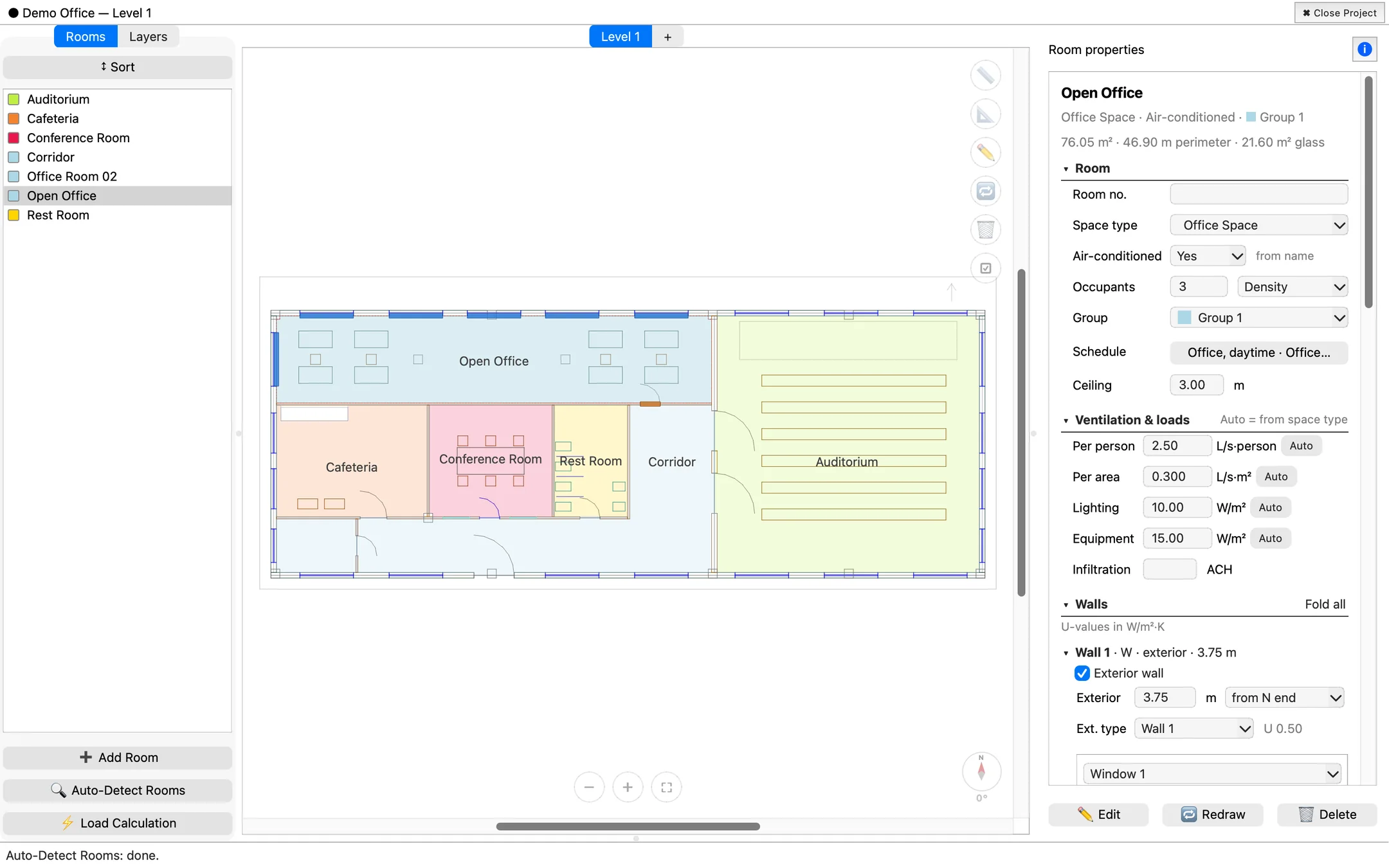
Auto-detect finds every enclosed space on your wall layers. Nothing becomes a room until you accept it.
Exterior walls are told apart from partitions, and every window is measured and given its compass direction. Net wall and glass areas are ready before you ask.
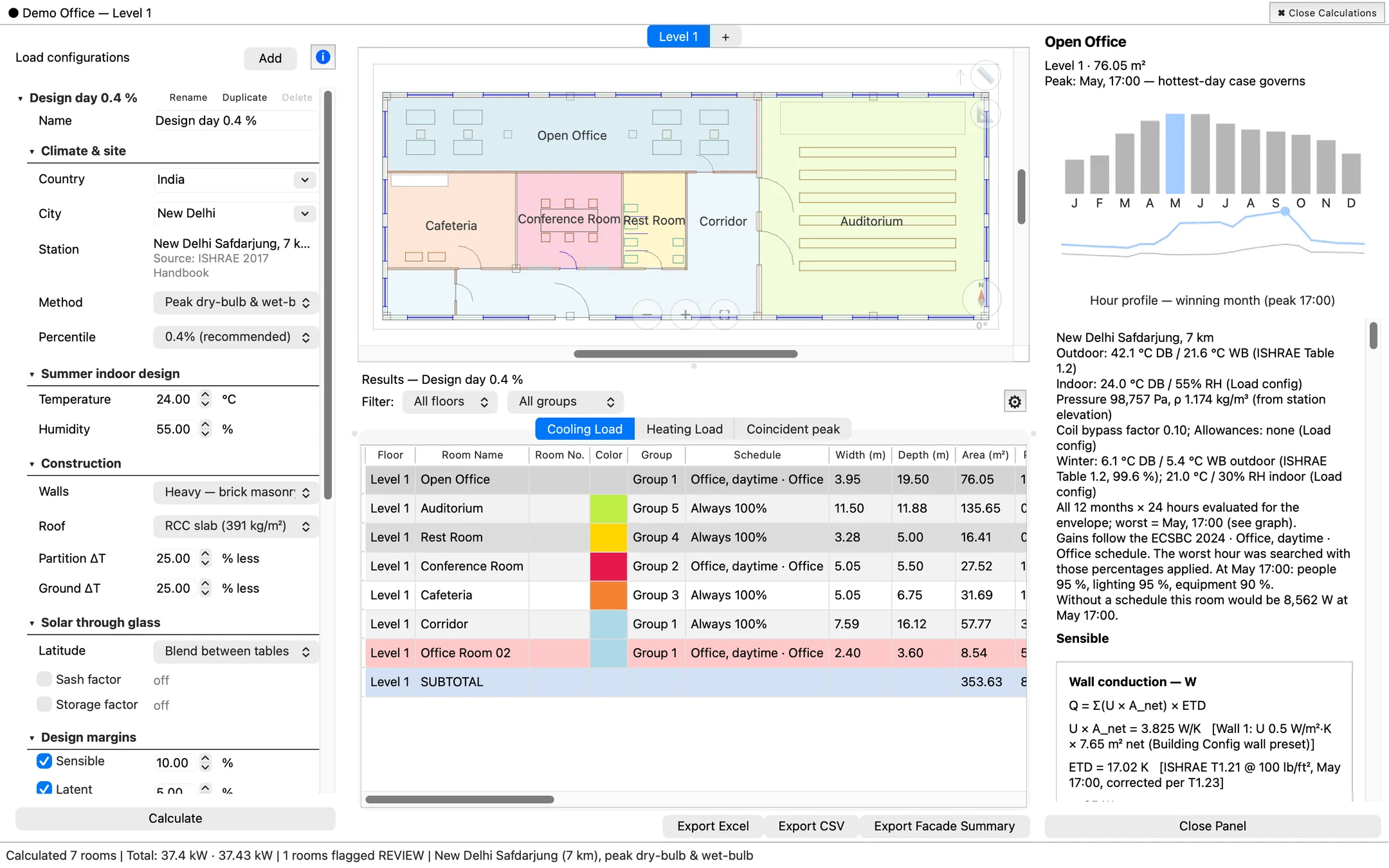
For each room, the search runs all 12 months and all 24 hours and keeps the worst one. The weather comes from the station nearest your city.
Double-click any room to see each step of its load. Every card shows the formula, the table it came from and the numbers that went in.
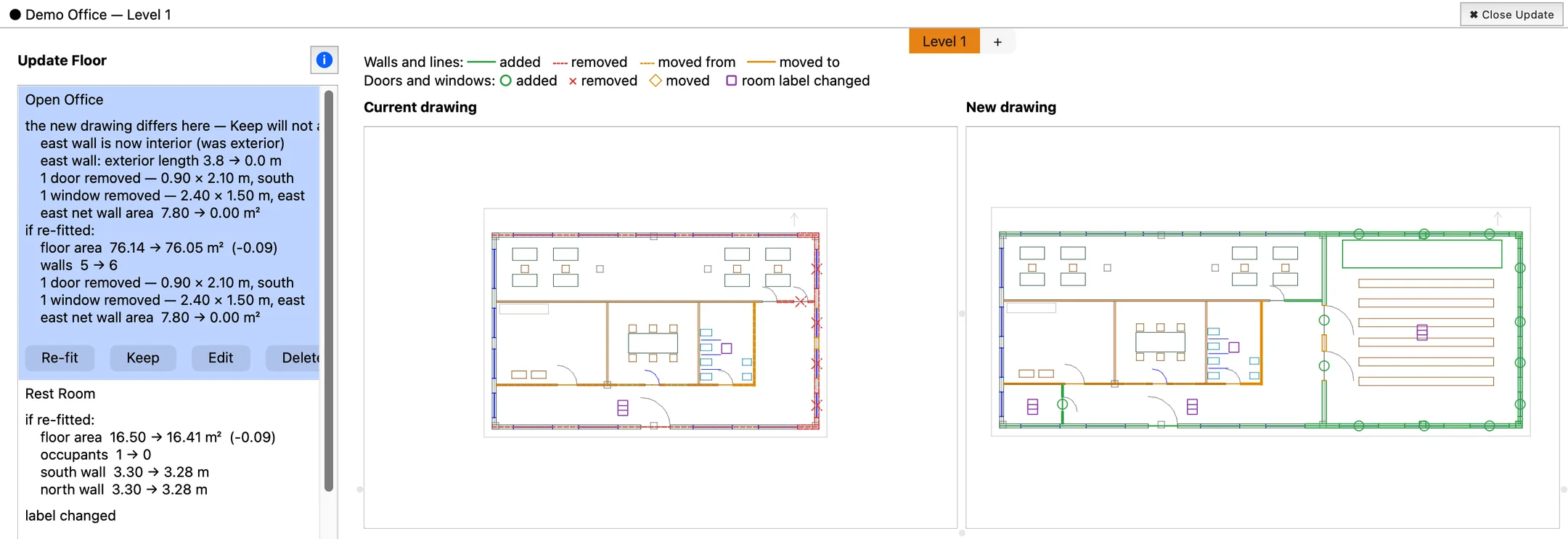
When the architect issues a new drawing, Update Floor shows what changed, room by room. The rooms you already checked stay checked.
Export to Excel or CSV with subtotals for each floor and group. The Facade Summary lists fresh air, wall and glass areas by direction for every room.
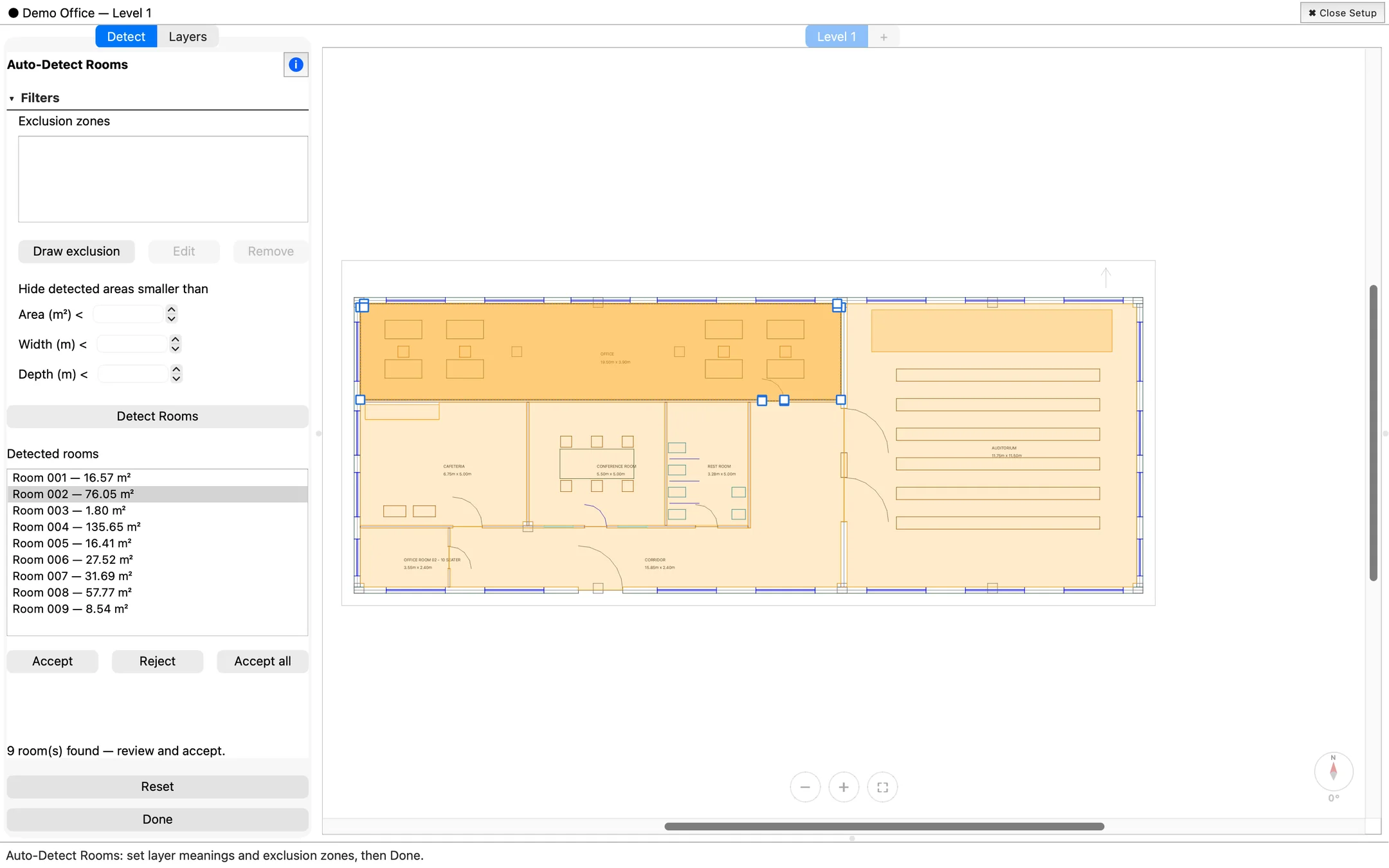
Step 1 · Detect
Say once which layers hold walls, windows and doors. Press Detect Rooms, and every enclosed space is listed with its area for you to accept or reject.
Step 2 · Calculate
Pick a city and press Calculate. Then double-click a room. The Explain pane walks through its load in the order the engine works, from wall conduction to the coil.
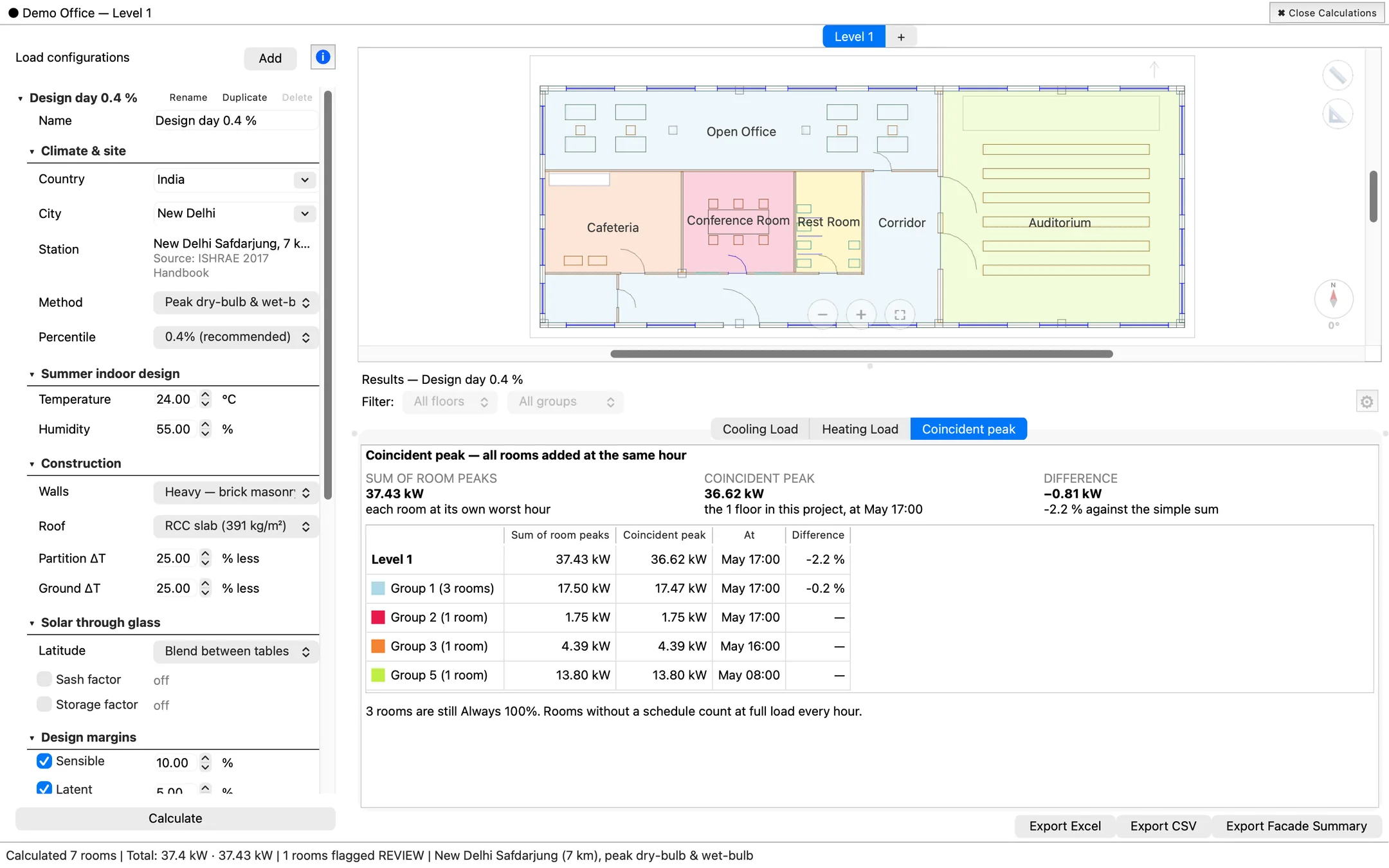
Step 3 · Size
Rooms peak at different hours. Give them schedules, and the app adds every room hour by hour. You get the coincident peak beside the plain sum of room peaks.
Step 4 · Revise
Point Update Floor at the new drawing. The old and new plans sit side by side, with added, removed and moved walls, doors and windows marked in colour.
The usual way
With HVAC Design Studio
Multi-floor buildings
Mark several floors on one sheet, and let a typical floor count as many storeys.
Coil selection per room
Apparatus dew point, supply air quantity and bypass factor, worked out from the room's own loads.
Glass in bands
One window preset can carry daylight and vision glass with separate values.
A guide inside the app
Every setting is explained in plain words, with the formula behind it.
One plan, billed yearly. Before you buy, run a pilot on your own drawing and put the load sheet beside the one you make today.
Free for two weeks
For a team that wants to check the numbers before deciding.
For everyday work
₹30,000.00 per seat, billed yearly
For engineers who size systems every week. Buy online, or contact us for a larger team.
DXF files open directly. DWG files are converted first by a free DWG converter that you install once. Any drawing with walls on their own layers will work; you tell the app which layers mean what.
Yes. Every calculation runs on your own computer. The app checks its licence online from time to time, and tells you well before the next check is due. For a computer that never goes online, you can activate by exchanging a file with us.
On your computer. A project is a single file saved next to your drawing. Your drawings and results are not uploaded anywhere; the only thing the app sends is the licence check.
The table-based method design engineers already use: equivalent temperature differences for walls and roofs, solar gain through glass by direction, internal gains, fresh air and a psychrometric coil selection. It is built for sizing at design stage. It is not an hourly energy simulation.
Today there are builds for Windows (64-bit) and macOS. Macs with Apple silicon run the macOS build through Rosetta 2. There is no Linux build yet.
Yes. Switch between SI and IP at any time, or mix them unit by unit. Switching only changes how values are shown, never what is stored.

Version 0.4.2. Runs with a licence key.
macOS build runs on Intel and, through Rosetta 2, on Apple silicon · Windows 64-bit
No key yet? Request a pilot.